
Send photos, videos, files, and voice messages, view what you receive, and choose what downloads automatically.
Before you share
- Photos always have location and device details removed. Videos and files are sent unchanged, along with any location or device details stored in them.
- Share and Open in another app give the content you choose to that app.
- GIFs marked via GIPHY are loaded from GIPHY when you download them.
Send attachments from the composer
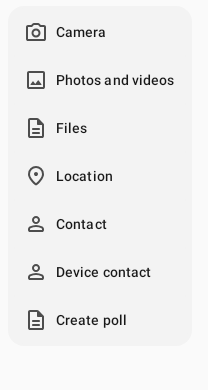
- In the composer, tap Add attachment, then choose Camera to take something new or pick existing items from Photos and videos or Files.
- Review the preview, where you can:
- Write a caption in Add a caption… if you want text alongside the media.
- Tap Add more to pick from Photo library or Document.
- Mark each item Included or Excluded, and check its Send position.
- Play a video with Play, Back 10 seconds, Forward 10 seconds, Playback Speed, and Mute.
- Tap Remove attachment to drop an item.
- Tap Send and watch progress move from Preparing and Encrypting to Uploading; if you see Upload failed, tap Retry.
Photo editing
In the preview, tap Edit photo to open the editor:
- Crop: drag the handles, or choose Free, 1:1, 4:3, 3:4, 16:9, or 9:16. Adjust crop lets you set the edges precisely.
- Rotate clockwise 90 degrees.
- Draw: pick a colour (Red, Yellow, Green, Blue, White) and a size from Small to Extra large. Erase removes drawing marks only.
- Undo and Redo step through your edits, while Reset starts over.
- Photo quality: Low, Standard, High, or Original.
Tap Save when you're finished. Edited photos use High quality, and the original image is kept for further editing. Closing the editor with unsaved changes asks Discard changes?, and Keep editing lets you continue. If you see This image cannot be edited safely., send the photo without editing it.
Voice messages

Voice messages send audio, while Dictate text sends text instead (see Messages).
- Touch and hold Hold to record voice message to start recording.
- Release to review, or slide off to cancel; while the recording is Locked, tap Stop recording when you're done.
- In Review voice message, tap Play voice message to listen back, then tap Send or Record again, or Discard the recording.
If you see Recording unavailable, tap Record again.
Viewing and saving received media
- Tap Tap to download on media that hasn't downloaded yet, then tap it to open. The full-screen viewer shows Media 1 of 3 and offers Save, Share, Forward message, Go to message, and More options. Group admins may also see Set as group picture.
- Voice messages: Play voice message, with an adjustable playback speed.
- Files: tap Open. If you see No app installed to open this file, save the file instead. Text files open in a reader with Read Aloud, Copy text, Save, and Open in another app.
- Too large to preview: save or share the file to view it in another app.
- APK files: only install them from a source you trust. If you see This build can't install APK attachments., save the file and open it from a trusted installer.
Browse shared media
Open a conversation’s details and find Shared in Chat. Choose Photos and videos, Documents or Voice; Links appears when links are available. Photos and videos can be filtered by All, Images or Videos.
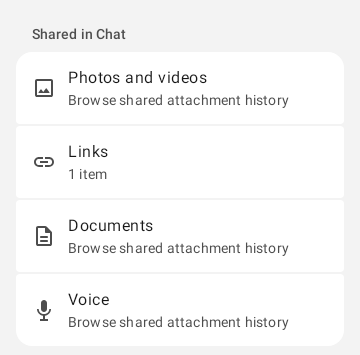
Use Load more to browse older attachments when offered, or Retry after a loading failure. A partial or loading result means more history may remain. Open an item to view or play it; opening an external link contacts that site.
Download controls
While a download is running, tap Cancel download. After Download cancelled. Tap to download again or Tap to retry, tap the item again. The labels Queued for download and Download paused come from your Data Usage settings, as does Download blocked by policy.
Data Usage settings
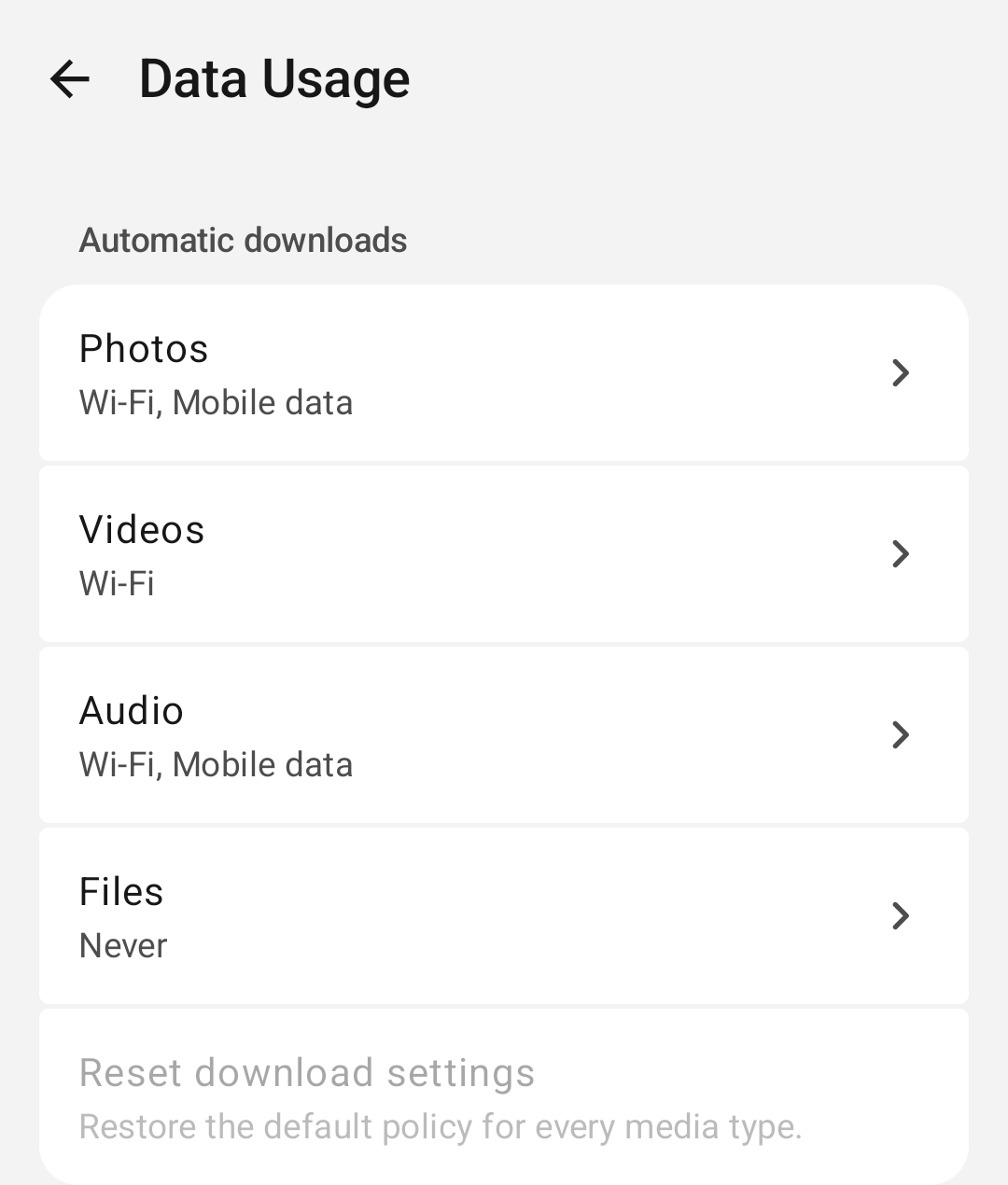
Open Settings, then Data Usage.
- Automatic downloads: for Photos, Audio, Videos, and Files, choose which networks are allowed (Wi-Fi, Mobile data, Roaming, or Metered network), then tap Done. A download starts automatically only if every rule that matches your connection allows it. Reset download settings restores the default rules for all types.
- Download queue: Stop automatic downloads clears waiting automatic downloads for this profile, while downloads you started yourself keep going. Restart automatic downloads resumes the queue.
- Sent media: Media quality sets the size of new photos and voice notes you record: Low (about 150 KB per photo), Standard (about 500 KB), High (about 1.5 MB), or Original (full resolution).