
Your profile is how people recognize you in White Noise. The Profile screen shows the notice Profile is public, which means everyone on the network can see your profile information, so add only details you are comfortable publishing.
Edit your details
- Open Profile and tap Edit.
- Update any of these fields:
- Name: your display name. Tap Restore saved name to bring back the last saved name.
- NIP-05 address: a Nostr address in the form name@domain.
- Lightning address: for example you@walletprovider.com. White Noise shows Checking… while it confirms the address.
- About: a short bio.
- Tap Save.
Expected result: Saving profile… appears while White Noise publishes your changes. A confirmed NIP-05 address shows Verified Nostr address.
Add a photo or banner
- Tap Add Photo or Add banner. If you already have one, tap Change Photo or Change banner.
- Pick Choose photos or Choose files to use an image from your device, or pick Find Image on Web. Image links must be public HTTPS URLs.
- To take an image off your profile, choose Remove Photo or Remove banner.
Uploading… stays on screen until the image is stored.
Privacy: Before you tap Find Image on Web, know that your search goes to an image search service, and loading results contacts the sites that host them. Those services receive the request and your IP address, as the White Noise privacy policy describes. Choosing an image from your device avoids that exchange.
Profile pictures and banners are public. Removing one updates your profile, but copies may remain on the independent servers that stored or relayed it.
Check profile status
White Noise shows Set up your profile until you add a name. After that it shows Profile ready or Profile ready · Optional details available. Tap Details for the checklist, where Display name is marked Recommended and the remaining items (picture, bio, banner, NIP-05 address, Lightning address) are Optional.
Share your profile
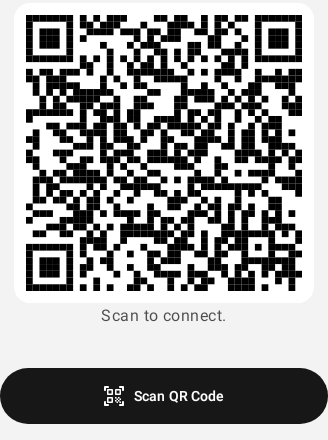
Open Share & Connect:
- Let someone scan your Profile QR code.
- Tap Copy public key to copy your npub.
- Tap Share profile, then Share profile URL or Share profile card. The card reads On White Noise? Message me here.
- Tap Save to Gallery to keep the card image. Expected result: Saved to gallery.
- Tap Scan QR Code to scan someone else's profile code.
Switch or add profiles
In Settings, tap the profile management row to switch to another signed-in profile or add a new one. Adding a profile lets you create a new identity or sign in with Amber.
If creating the identity or the Amber sign-in fails, start the step again. When Amber asks for approval, approve the request so sign-in can finish.
For keys, signing out, and what wiping a profile removes, see Identity settings.
Fix common problems
- If your profile fails to save, review each field and tap Save again. NIP-05 and Lightning addresses use the form name@example.com.
- If a Lightning address fails to resolve, correct the spelling. When White Noise reports a network problem, reconnect and save again.
- If an image upload or preparation fails, try again or choose another image.
- If a scanned code is rejected as something other than a White Noise profile, ask the person to show the code from their Share & Connect screen.