
Both people need White Noise, or another compatible Marmot client, set up and connected. A Nostr public key (an address starting with npub) identifies the person. Their app also needs to publish invitation keys so you can start a chat. If that fails, see Invitation problems.
Find the person using their Nostr public key or profile QR code, then start a direct chat.
Find the person
- On Chats, tap the pencil control labelled New Message to open the recipient search.
- In Name or npub, type a name or Nostr address, or tap Paste to insert a copied npub or profile link. To scan a profile code instead, tap Connect with QR.
- Choose the person from the results, where people you follow are marked “You follow”.
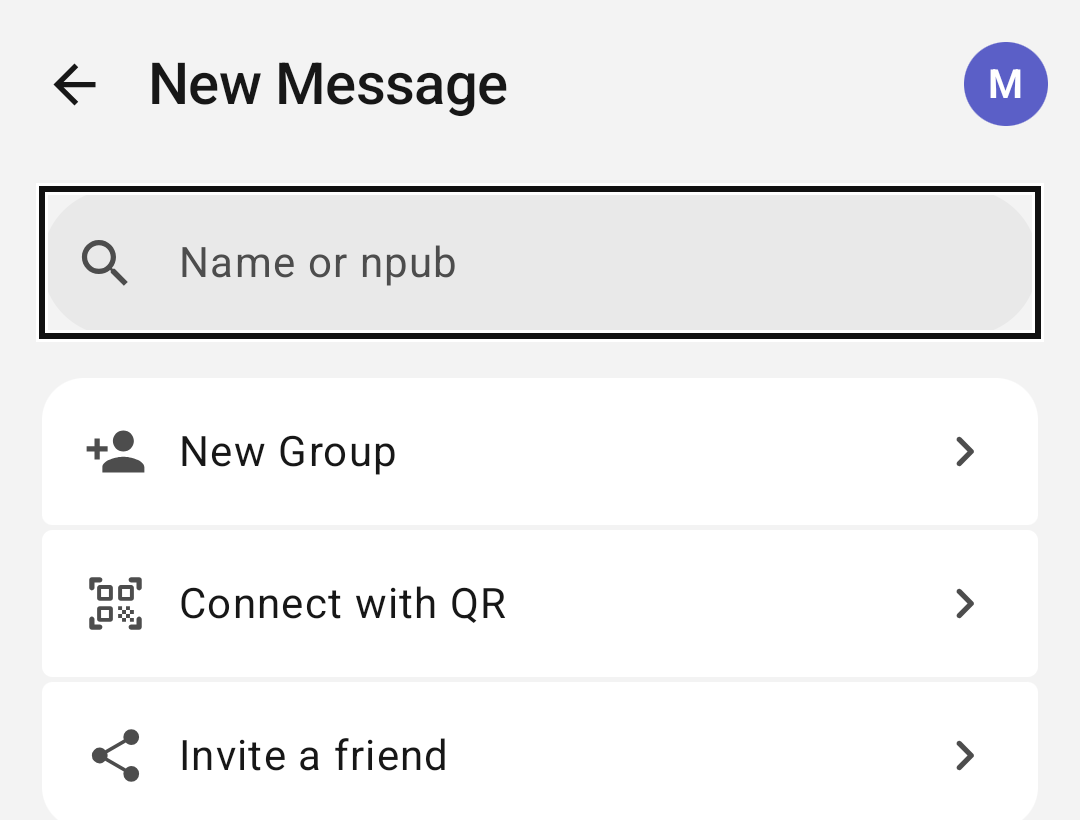
If White Noise marks an address as unverified, tap Retry or confirm the address with the person before you message them. If the network search fails or looks incomplete, check your connection and tap Retry; pasting their npub directly also works.
Send your first message
- Open the chat and wait while White Noise sets up encryption and shows an empty conversation.
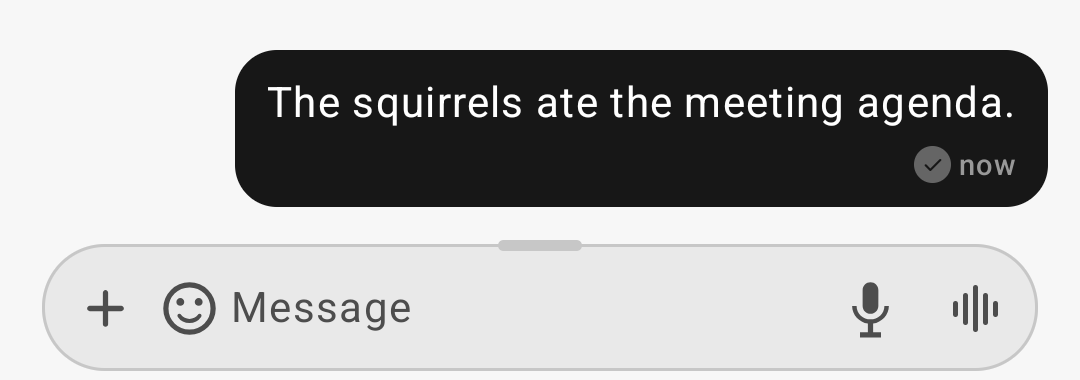
- Type your message in the composer and send it.
Expected result: your text appears in the chat. A local send status reports progress on your device only, and the recipient may still be offline or yet to read it.
If starting the chat fails, check your connection and tap Retry. If White Noise shows Chat created with Open chat, the chat exists and is still reaching your list, so wait a moment and tap Open chat. If a message shows Send failed, check your connection and see Delivery problems.
Let others message you
In Settings, tap your profile card (Share & Connect) to show your QR code or copy your npub for others.
Invite someone new
Tap Invite a friend to open your device's sharing options with a link to download White Noise.
Accept or decline an invitation
When someone starts a chat or group with you, it appears as an invitation in your chat list. Open it and tap Accept to join or Decline to turn it down. If the invitation is still being checked, wait for it to finish, and if checking fails, tap Retry. See Invitation problems for more help.