
White Noise for Android runs on Android 11 or later. After you install it, you can create a new profile or sign in with a Nostr identity you already have.
Get the app
- On Android, we recommend installing White Noise from Zapstore.
- On the White Noise listing, choose Download and follow Zapstore’s installation instructions. If Zapstore cannot offer a build, use another download option.
- If you'd rather use Google Play or download from GitHub, see Download for those options.
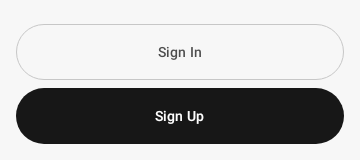
- Open White Noise. You should see the welcome screen.
Expected result: the welcome screen shows Sign Up and Sign In. If the app reports a connection problem, connect to Wi-Fi or mobile data and tap Retry.
Create a new profile
Before you sign up, know that your profile is public. Everyone on the network can see the details you publish, including your photo, so consider using a nickname in place of your real name.
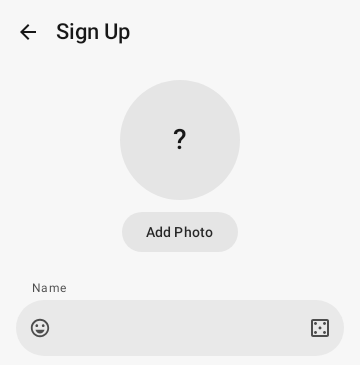
- Tap Sign Up on the welcome screen to open the profile form.
- Enter the Name people will see. If you like, add About text or tap Add Photo to choose an image.
- Continue, then wait while White Noise shows Creating Identity and publishes your new profile.
If identity creation stops, check your connection and try again. If your identity was created but the photo upload or profile publishing stopped partway, tap Retry, which keeps the same identity. You can also keep the identity as it is and finish editing your profile later.
Sign in with an existing identity
For an encrypted backup, first follow Encrypted backup import.
A Nostr identity has two keys: your public key (npub) is the address you share with people, and your private key (nsec) signs you in. Keep your nsec private, because anyone who has it can act as you.
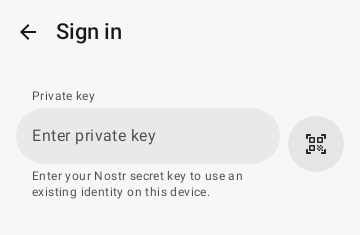
- Tap Sign In on the welcome screen to open the private key form.
- Paste or type your nsec into the field. To scan it instead, tap Scan QR Code and allow camera access.
- Tap Sign in and wait for White Noise to finish setting up your account.
To use the Amber signer app, tap Sign in with Amber, then approve the identity request in Amber and sign the identity proof it shows next. If Amber reports that sign-in was cancelled, start again from the welcome screen.
If White Noise says you entered a public key, replace the npub with your nsec. If it says account setup is still finishing or stopped partway, tap sign in again to resume.
Finish account setup
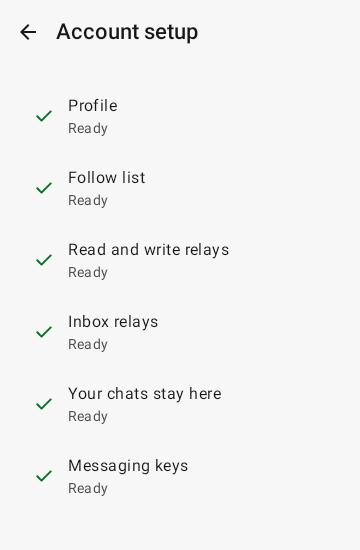
If Account setup appears, review the checklist. It checks your profile, follow list, read and write relays, inbox relays, this device and messaging keys. A row marked Needs attention opens the explanation and the choices available for that step. Review any proposed change before approving it.
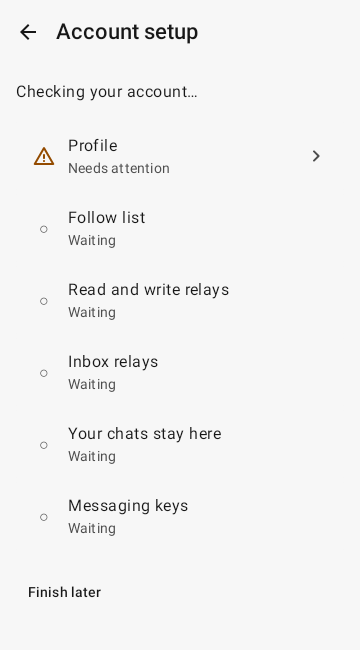
If a relay step needs attention, inspect the proposed read and write lists. Recommendations keep existing relay entries, while a custom list removes entries you leave out. Changes can affect your other Nostr apps, so review the lists before choosing Save changes. Use Finish later if you want to leave the decision for another time.
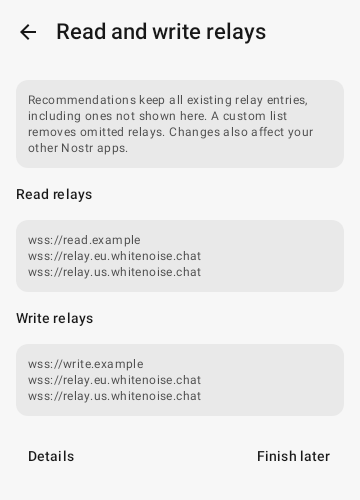
When all required checks show Ready, tap Open Chats. Finish later saves the unfinished setup so you can return to it; it does not make a waiting step ready.
Recover an unfinished setup
White Noise offers two recovery options, and neither one restores earlier conversation history.
- Recover appears when an earlier sign-in stopped partway. It clears the unfinished setup and then retries the sign-in for you. Invitation keys that were already published may stay on relays.
- Recover setup appears on a saved profile whose setup needs repair. It signs that profile out and resets its setup checkpoint, so you must sign in again yourself with the profile's private key. Earlier relay publications stay in place, and this step publishes nothing new.
If sign-in stops because of an unexpected account state, White Noise leaves your account unchanged. See Access problems for more help.