
Settings has three groups: Account, App and Support. When a setting applies to the active profile or to every profile on the device, its section says so.
Settings layout
Your profile and avatar appear at the top, with Edit profile picture, Open Share & Connect, Add Profile and Switch Profile. Sign Out is also on this screen, and the app version is shown at the bottom.
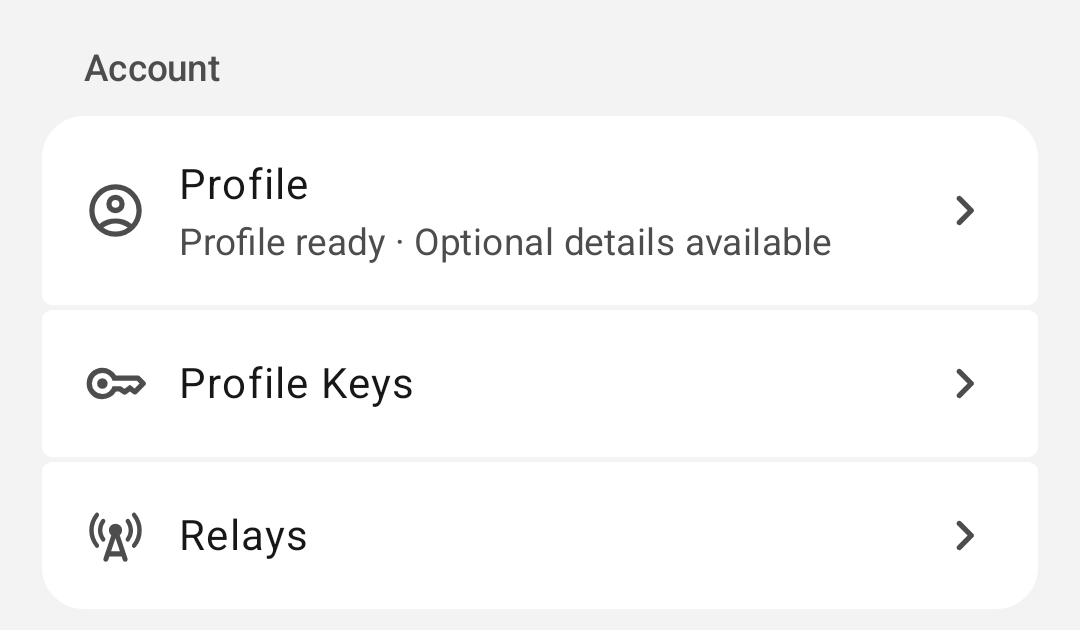
Account
Profile
Edit your name, picture and other profile details. See Profiles.
Share & connect
Share & Connect has these controls.
| Control | Effect |
|---|---|
| Share profile URL | Opens Android sharing with a link to your profile. |
| Share profile card | Shares an image card that says: On White Noise? Message me here. |
| Save to Gallery | Saves the profile card image. On failure the app shows: Couldn't save image. |
| Copy public key | Copies your public key. |
| Profile QR code | Someone can scan this code to connect with you. |
| Scan QR Code | Scans another person's code. Only codes that contain a White Noise profile are accepted. |
Profile keys
Profile Keys shows your public and private keys together with the account session status. It also holds these actions:
- Export, for backing up your private key.
- Sign Out.
- Sign Out & Wipe.
Some of these actions are permanent, so read Identity and keys before you use them.
Relays
This screen controls where your profile publishes information and receives invitations. See Relays.
Appearance
| Control | Options | Scope and effect |
|---|---|---|
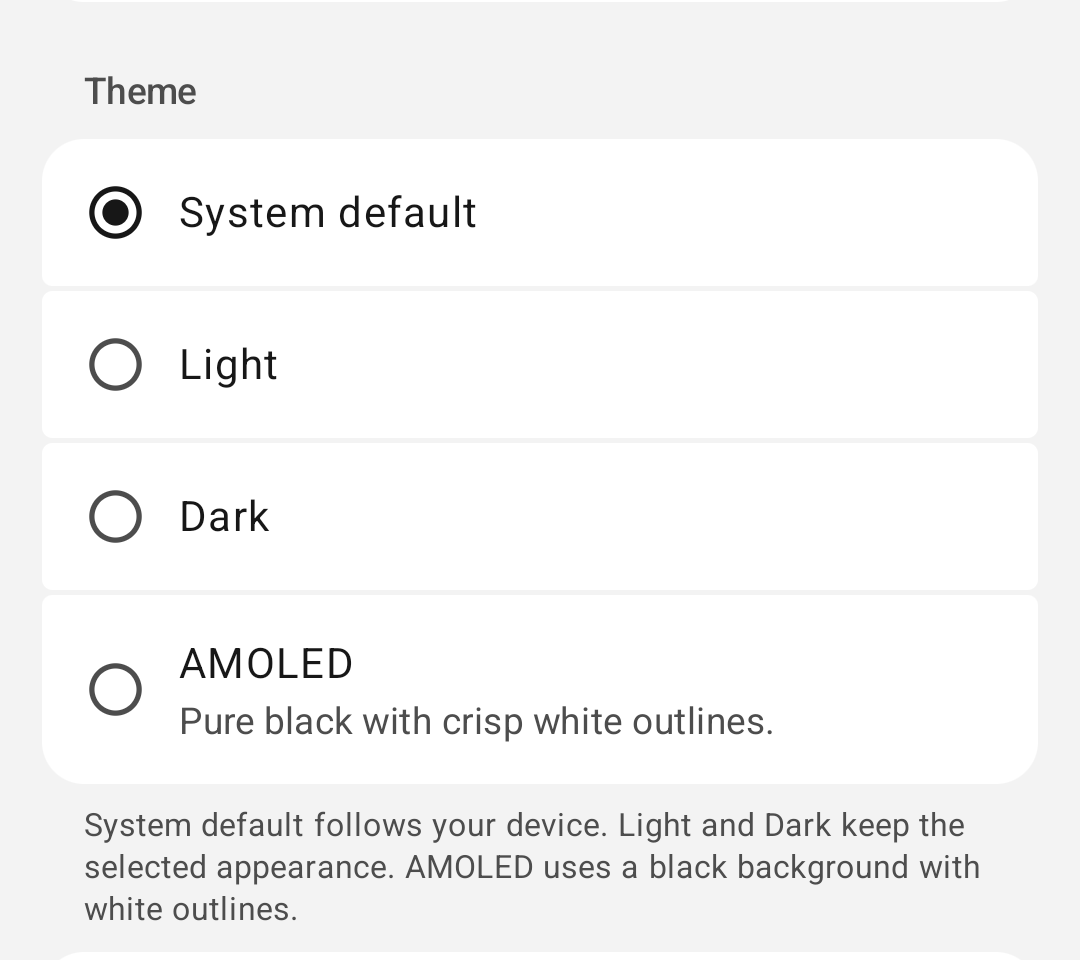
| Theme | System default, Light, Dark, AMOLED | System default follows your device. AMOLED uses a pure black background with white outlines. |
| Action color | One accent per theme | Applies to the active profile and leaves backgrounds and neutral surfaces as they are. In AMOLED, action buttons are always white. Reset to default undoes your change. |
| Chat bubble colors | Your messages, Other messages | Sets default bubble colors for the current theme. In AMOLED these colors apply to outlines, and bubble interiors stay pure black. A single chat can override these colors in every theme, and Reset to global colors removes that override. |
| Custom emoji | Choose from Photos or Choose from Files | See below. |
| Language | System default, English, Deutsch, Español, Français, Italiano, Português, Русский, Türkçe, 简体中文, 繁體中文 | Sets the app language. |
| App font | System and other fonts | Sets the app font. |
| Font size | Small, Default, Large, Extra large | Applied on top of your device font-size setting. |
| Enter key behavior | Send message, New line | On a hardware keyboard, Shift+Enter always inserts a new line. |
| Quick account switching | On or off | Shows your other accounts beside your avatar so you can switch with one tap. |
The color picker has Hue, Saturation and Brightness sliders and a Hex color field that takes six hexadecimal digits, for example 1D4ED8 after the # sign.
Custom emoji
Images you add here become :shortcode: emoji that you can use in messages and reactions, and they are stored on this device.
- Open Settings > Appearance > Custom emoji, then tap Choose from Photos or Choose from Files to pick the image you want to add.
- Enter a shortcode made of letters, numbers and the _ symbol, then tap Save. If the shortcode is already in use, the app warns that the new image will replace your current one.
The image must be PNG, GIF, WebP or JPEG and 1 MB or smaller. When a new message (not a reply) uses a custom emoji, the image is encrypted and uploaded to that chat so its members can see it. Reactions, replies and edits send only the shortcode. Removing an emoji deletes it from this device, while messages you already sent keep the image that was uploaded with them. An emoji marked Display only, can't be sent can be tapped to remove it.
Swipe actions
The Messages and Chats sections each have a Swipe left and a Swipe right row. Left and right describe the direction your finger moves, so an explicit choice stays the same when you change the app language. Default follows the reply direction for your language, and the row shows the action it currently resolves to, such as Default: Reply. Chat swipes are off by default.
| Section | Actions shown in Settings |
|---|---|
| Messages | Default, Reply, Forward, React, Off |
| Chats | Read / unread, Mute / unmute, Pin / unpin, Off |
Each message or chat row still decides whether the chosen action applies to it. Reset to default restores the defaults.
Folders
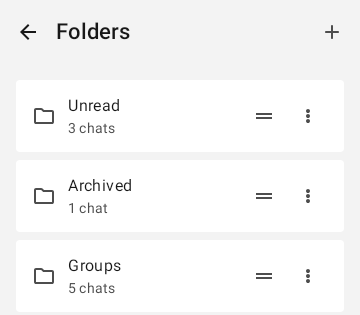
Folders sort your chat list into groups of chats, and deleting a folder leaves your chats where they are.
- New Folder creates a folder.
- Move Up and Move Down change the folder order.
- Restore Default Folders adds back any missing default folders (Chats, Unread, Archived and Groups) and keeps your changes to folders you already have.
Edit a folder
| Field | Effect |
|---|---|
| Folder name, Description | Labels for the folder. |
| Include all active chats | Includes every active chat. |
| Always include chats / Included Chats | Chats you add here stay in the folder even when they fall outside the rules. |
| Automatic rules or Filters | Chats are matched automatically. See below. |
| Show when empty | Keeps the folder visible when no chats match. |
| Sort chats by | Most recent activity, Name A–Z or Unread first. Invitations and pinned chats always appear first, and pinned chats keep the order you set. |
| Preview | Shows which chats match before you save. |
| Delete folder | Removes the folder and keeps your chats. |
If you leave with unsaved changes, the app asks whether to Discard Changes or Keep Editing. If saving fails, your edits stay on screen so you can try again.
Filters can use read status, unread mentions, people (any, all or excluded), draft, pending outgoing messages, muted, archived, accepted chats, conversation type, title contains, and pinned. You can also add public keys as npub or hex. Conditions can be grouped with Match all or Match any, and NOT excludes chats that match a group. A rule set can have up to 4 levels and 64 conditions or groups. Presets include All read and Unread mentions. All read means every message has been read, which tells you nothing about whether an agent has finished its work.
Some folders use older saved rules. For these, chats that match any person or keyword must also meet every selected category, and a removed chat that still matches comes back. If a rule set can't be read, automatic matching is turned off until you replace the rules. Replace rules keeps the folder name and included chats.
Notifications
If notification permission is off, tap Allow notifications. You can also turn notifications on in Android Settings.
| Control | Effect |
|---|---|
| Push notifications | When new activity may be available, the app wakes briefly and checks securely for messages. See below for when this option is unavailable. |
| Local notifications | Keeps a persistent connection open while notifications are on. |
| Device status | Shows whether notification permission is Allowed or Blocked, and the battery policy: Optimized, Unrestricted, Restricted or Unavailable. Battery policy can delay background delivery with either option. The status updates when you come back to this screen. |
| Notification categories | Direct messages, Group messages, Mentions, Reactions, Invites, Group membership changes, Agent activity, App updates and Notification summary. Android controls the sound, vibration and importance of each category. |
| Show notification previews | When off, names and message content are hidden. Applies to all accounts. If the app shows Changes may be lost after restarting, tap Retry. |
Push notifications is unavailable in these cases:
- The build has no push server configured.
- Firebase isn't configured or can't start.
- The device lacks compatible Google Play services.
See Notifications.
Read aloud
Privacy: A separate speech engine may send decrypted message text to its provider. For on-device speech, the app recommends RHVoice or eSpeak NG.
- Open Settings > Read Aloud and choose an Engine.
- Choose an installed offline Voice, or use Automatic offline voice. Open Android Settings takes you to system speech settings when you need to configure the engine.
- Return to a conversation, touch and hold a message and choose Read Aloud. See playback controls.
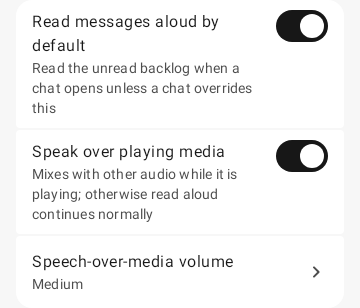
Read Aloud has these controls.
| Control | Effect |
|---|---|
| Engine | The installed speech engine, labeled On-device engine or May use network speech. |
| Voice | Automatic offline voice uses the best installed offline voice for the message language. You can select a voice when it is installed and works offline. Each selectable voice also has a name of its own that no other voice shares. If your saved voice is unavailable, the app tells you which voice it is using instead. |
| Speech rate | System follows your device setting. You can also pick a preset, or choose Custom and enter a rate from 0.1× to 10.0×. |
| Read messages aloud by default | When a chat opens, unread messages are read aloud unless that chat has its own setting. |
| Speak over playing media | Speech plays over other audio that is playing. |
| Speech-over-media volume | Quiet, Medium or Loud: 35, 60 or 85 percent of the speech engine volume. |
Open Android Settings opens the system speech settings.
Translate
Use Translate messages to install Offline Translator, choose languages and manage automatic translation.
Dictation
Use Dictate text to set up a speech provider and choose how recognized text enters your draft.
Data usage
In Data Usage, Automatic downloads let you set a separate rule for each media type: Photos, Audio, Videos and Files. Each rule covers Wi-Fi, Mobile data, Roaming and Metered network, or you can choose Never. A download starts only if every network rule that applies allows it, and you can always download media yourself.
- Download queue: Stop automatic downloads clears waiting automatic downloads for this profile while active downloads and downloads you started yourself keep going. Restart automatic downloads turns them back on.
- Reset download settings restores the default rule for every media type.
- Media quality for sent media: Low (about 150 KB per photo), Standard (about 500 KB), High (about 1.5 MB) or Original (full resolution). Quality applies to new photos and voice messages, and videos and audio files are sent as they are.
Photos always have location and device details removed, even at Original. Videos and imported audio keep their original data. See Media.
Privacy & security
Privacy & Security has these controls.
| Control | Effect |
|---|---|
| Screen security | Blocks screenshots and hides White Noise previews in Recents. |
| Incognito keyboard | Asks your keyboard to stop learning from what you type in White Noise. Your keyboard may ignore this request. |
| Require device authentication | Asks for your device screen lock when you return to White Noise. Set up a device screen lock first, using Open Android security settings. |
| Auto-lock | Controls when the app lock takes effect. |
| Blocked users | Blocked people can't message you directly. Groups you share with them keep working, and their message history stays on this device. You can Unblock them from this list. |
| Default disappearing messages | Applies to new chats and groups that this profile starts. Existing conversations keep their setting, and you can change each conversation later. |
| Diagnostics & Improvements | Optional usage sharing and diagnostic logs. See Android diagnostics. |
White Noise stores the time you last passed your screen lock in storage protected by Android Keystore. If that record becomes unreadable, the app asks for your screen lock again on the next open.
If the app shows White Noise saved your request but couldn't confirm it yet, repeat the same block or unblock action to finish it. See Privacy.
AI agents
AI agents run on a computer or server you control. Each agent has its own account, and you chat with it like any other end-to-end encrypted chat. The available connectors are Hermes, OpenClaw, OpenCode, Codex, Claude Code and Goose.
- Choose the connector for your agent, then tap Copy prompt to copy its setup prompt.
- Paste the prompt into that agent. The prompt includes your public npub; your private key stays out of it.
- The agent explains how the connector works and must ask for your approval before it installs anything.
- When the agent gives you its npub, add it as a contact from New Message and start a chat.
Use these prompts only with an agent you run and trust. Agent connector documentation has install scripts and health checks, and it also covers troubleshooting. Use a separate group for each project, and expect session controls to vary by connector.
Support
| Row | Effect |
|---|---|
| Help > Report a bug | Opens a review screen explaining that nothing is attached. Tap Open GitHub to open the public issue form in your browser. See Report a problem. |
| Help > About & licenses | Shows the version, build and MarmotKit version, open source licenses and the privacy policy. |
| Chat with support | Starts a chat with White Noise Support. The profile needs a published receiving relay first. If it lacks one, tap Open Relays. |
| Donate | Opens the donation page. |
| App updates | Shows Up to date or tells you that a new version is available on Zapstore. It may instead offer Check for updates; if the check fails, tap to retry. |
Developer tools
Developer Tools are for development and testing only, because they can expose technical information and change how the app behaves. Turn them on from About & licenses, and the app confirms that they are enabled.
- Developer mode shows diagnostics and MLS internals.
- Key Packages shows your published invitation keys. See Identity and keys.
- Quarantined groups lists groups that couldn't be loaded safely. Retry recovery keeps your history and leaves your group membership unchanged.
- Streaming debug shows agent-stream and MLS signaling events inside conversations.
- Diagnostics shows relay health and performance logs.
- Review environment creates Johnny Appleseed as a second profile. It then publishes real events to your relays: profile, key package, group and message events. Clear saved demo setup only removes the local resume record.
Warning: Seed conversation fixture sends numbered real messages from this account to the chat you choose, and every member of that chat receives all of them. Use it only in a private test group.