
Groups let you chat with several people together.
Create a group
- Tap New Message, then tap New Group to start choosing members.
- Find people by searching with Name, Nostr address, or npub. You can also tap Paste or Scan QR Code. An unconfirmed address shows Address not verified.
- Review Selected people and tap Continue. To start alone, tap Create without other members.
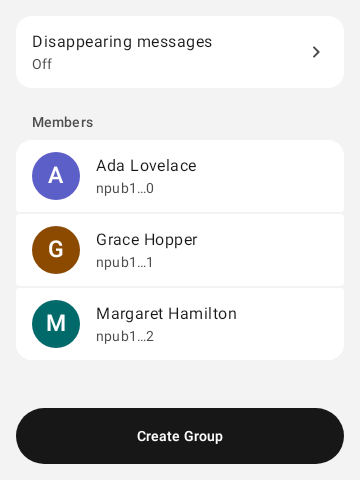
- On Set Up Group, enter a Group name, an optional Description, and a Disappearing messages setting. Tap Add Photo for an image.
- Tap Create Group.
Expected result: Creating group… appears, then Chat created. When setup fails, check your connection and tap Retry. To skip one person who is holding up setup, tap Remove this person and continue. A new chat can take a moment to reach your chat list; wait, then tap Open chat.
Open group details
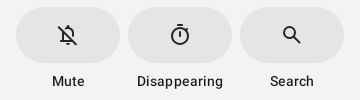
Open the conversation and tap its header. Group details show Group · N members and quick actions for Mute, Disappearing, and Search. Admins also see management options.
Edit group details
Only admins can edit these details, and every member sees the result.
Web image search sends your query and IP address to DuckDuckGo and image hosts.
- In group details, tap Edit group name and description.
- On Edit Group, change Group name or Description (optional).
- Tap Add Photo or Change Photo, then pick an image from Photos or Files. You can also tap Find Image on Web, or tap Create from emoji and pick one or two emoji. Remove Photo clears the current image.
- Tap Save Group.
When an image fails to upload, try a PNG or JPEG.
Manage members and admins
Removed members lose access to the chat and aren't notified. Removal can't erase messages they already received.
- Add: tap Add Members and choose people. In groups of 150 or more, extra invitations might not arrive reliably. Tap Continue to proceed.
- Remove: on a member, choose Remove member and confirm.
- Transfer admin: tap Transfer administration and pick a member. You step down right away.
- Step down: tap Step down as admin. Another admin can restore you later.
Rows show Admin or Member, and Updating member… during a change. The chat shows Invite pending or Removal pending until it completes. Tap Retry when members fail to load. From a person's profile, you can also open Groups in Common and tap Add to a group.
Notifications and disappearing messages
Tap Sounds & notifications. Under Notify for, choose All messages, Only mentions, or Nothing, and set a Vibration pattern if you like. To silence the chat for a while, tap Mute and pick a duration or Custom time. Direct mentions can still notify. These settings apply to this device.
Admins set the disappearing timer for everyone. New messages are permanently deleted after the chosen time; unread ones start when read. The timer can't stop saved copies or screenshots.
- Tap Disappearing.
- Pick a preset or Custom time, then tap Save. To turn the timer off, pick Off and save.
- Tap Set timer to confirm.
Export a conversation transcript
You can share or save a copy of a conversation as a JSON file.
Warning: The transcript file is not encrypted. It contains the conversation's message content and identifiers as plain text. Anyone who receives or opens the file can read it. Only share it with, or save it to, a place you trust.
The file contains the conversation's decrypted inner Marmot/Nostr events, including message content, in chronological order. Use it to read or process the conversation. It is not a backup. You can't use it to restore the conversation or the group's encryption state.
To share the transcript with another app:
- Open the conversation details.
- Tap Export Conversation Transcript.
- Choose the app you want to share the file with.
To save the transcript to a location you choose:
- Open the conversation details.
- Tap Save Conversation Transcript.
- In the Android file picker, choose where to save the file.
Leave or remove a group
Leaving removes you, and you need a new invitation to rejoin. If you're the only member, the group is deleted. If you're the only admin, transfer admin first; White Noise can transfer and leave in one step.
- Leave: tap Leave group, then Leave.
- Archive: tap Archive Chat to hide it. Unarchive Chat restores it.
- Delete: tap Delete group, then Delete. This affects this device only.
Disbanding permanently ends the group for everyone. Nobody can send or receive new messages. It can't be undone.
Admins can tap Enable disbanding, then Disband group, then Disband. If it fails, check your connection and try again.
Advanced: recover a group
Use these steps only when a group stops syncing. For other diagnostics, see Settings.
Rejoin. After Unable to restore group synchronization., some invitations retry automatically. Re-invite anyone still missing from group details. When an invitation arrives, tap Review invitation from.
Rejoining replaces this device's encryption data for the group. History stays. Only rejoin if you trust the inviter; a newer group version alone isn't proof.
Tap Rejoin group or Decline invitation, and tap Retry when the check fails. Dismiss closes a notice about missing earlier messages.
Reset this device's copy.
Reset erases this group's history and encryption state on this device only. Nothing is sent to the group.
In group details, tap Reset and wait for a new invite, then Reset. You rejoin when an admin sends an invite created after the reset.
Quarantined groups. A group is quarantined when its stored encryption state can't load safely. Go to Settings > Developer Tools > Quarantined groups and tap Retry recovery. Tap Refresh groups when the list fails to load. Recovery reruns every check and keeps history; it doesn't rejoin you. On success the group returns to your chat list. If it stays quarantined, history is still kept; try again later.