
Set how White Noise delivers alerts and check the Android settings that can block or delay them. Open Settings, then Notifications.
Allow notifications
- Tap Allow notifications.
- Accept the Android permission prompt.
Expected result: under Device status, Notification permission shows Allowed.
If you decline, White Noise shows Notification permission denied. When the screen shows Notifications are off, turn notifications on for White Noise in Android Settings, then return to this screen.
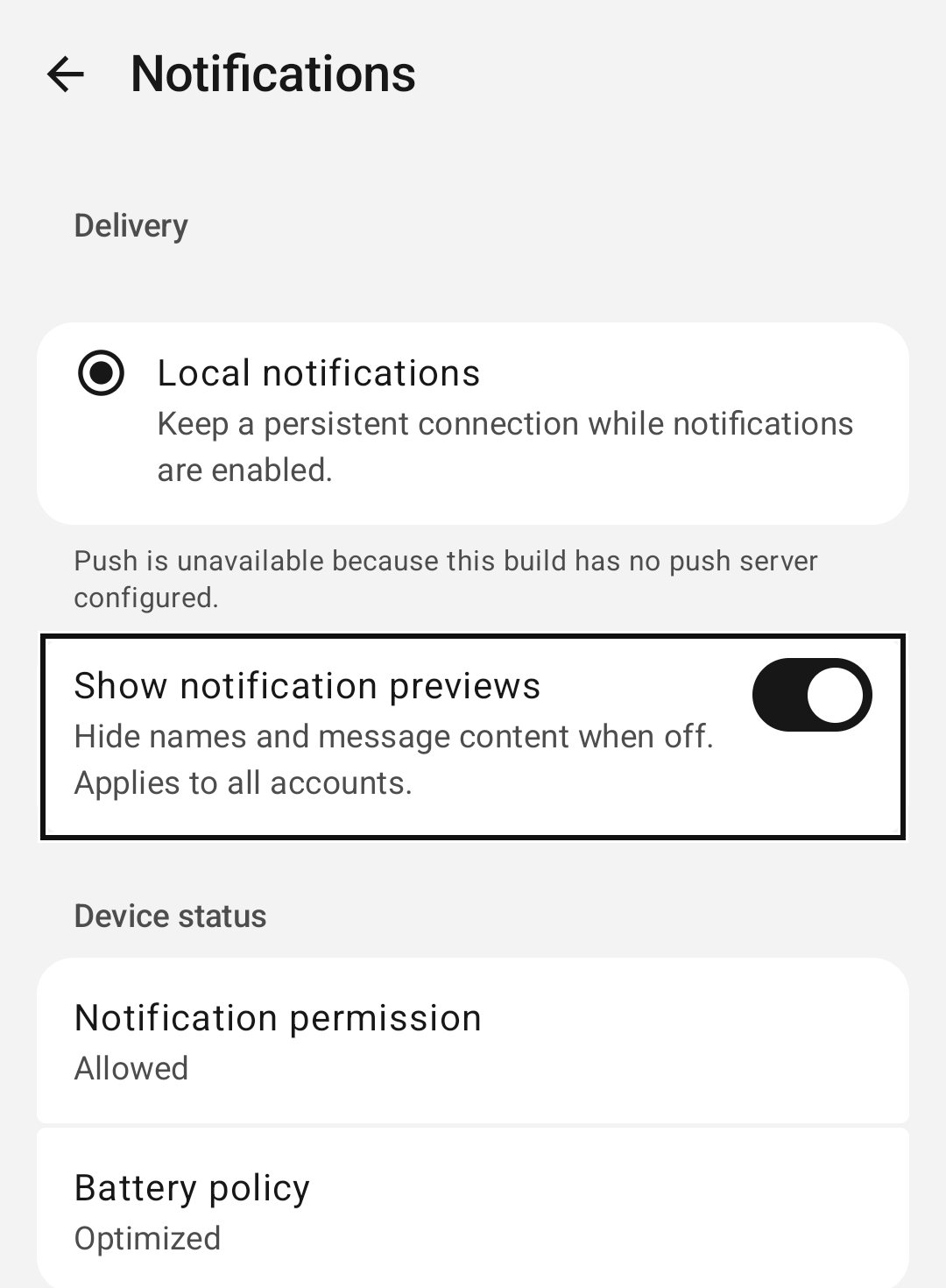
Choose a delivery method
Under Delivery:
- Push notifications wakes White Noise briefly when new activity may be available, then checks securely for messages.
- Local notifications keeps a persistent connection while notifications are enabled.
Push can be unavailable. The row explains why: the build has no push server configured, the device lacks compatible Google Play services, or Firebase could not initialize. Use Local notifications in those cases.
Hide names and message content
Turn off Show notification previews to hide names and message content in notifications. This applies to all accounts on the device.
If saving fails, a Retry row appears with the note that changes may be lost after restarting. Tap Retry until it disappears.
Check device status
Device status shows two items:
- Notification permission: Allowed or Blocked. Alerts appear only while it is allowed.
- Battery policy: Optimized, Unrestricted, Restricted or Unavailable. Battery policy may delay background delivery with either delivery method.
Tap an item to open the matching Android settings. If White Noise reports Couldn't open notification settings, open Android Settings and find White Noise yourself. The status refreshes when you come back.
Notification categories
White Noise sorts alerts into categories: Direct messages, Group messages, Mentions, Reactions, Invites, Group membership changes, Agent activity, App updates and Notification summary. Android controls sound, vibration and importance for each one. Adjust them in Android's notification settings for White Noise.