
Your private key is how you sign in to this profile again, and only you hold it. White Noise has no way to recover it for you, so back it up before you sign out, wipe an account, or change phones.
What a key backup restores
A private key backup restores your identity: your profile and the ability to sign in as yourself. Message history and group encryption (MLS) state live on the device where they were created and stay out of the backup. If you move to a new phone with only your key, your identity moves with you and your conversations remain on the old device. To rejoin groups from a new device, ask members to invite you again.
Encrypted backup import
White Noise exports identity backups as NIP-49 ncryptsec1 strings protected by your passphrase. The current sign-in screens require a decrypted private key, shown as nsec in these guides. Before you delete an identity or its app data, keep the existing profile signed in on its device and keep the ncryptsec1 backup and its passphrase available. Ask the runtime or app maintainers for a trusted method to decrypt NIP-49 locally, and confirm it produces your nsec before removing anything. Keep the key and passphrase on devices you trust; avoid online converters and web uploads.
Back up your private key
- Open Settings, then Profile Keys.
- Under Export, tap Export Encrypted Private Key.
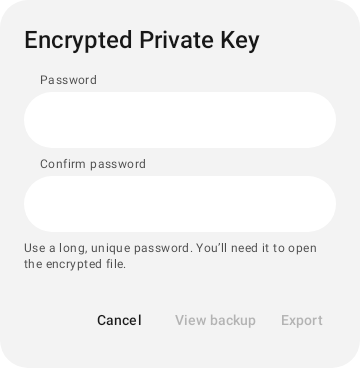
- Enter a Password and repeat it in Confirm password. Choose a long, unique password; the Strength meter rates it from Too short to Strong passphrase.
- Tap Export to save the backup, or tap View backup to see it first.
- Finish the save in the file location or sharing app you picked.
Expected result: an encrypted backup stored in the destination you chose. Tapping Export starts the process, and your backup exists only once that destination has saved it, so check it’s there. Keep the password somewhere separate from the backup, because you need both to restore. The Your encrypted backup preview hides after 30 seconds or when you leave the screen.
Export Private Key produces the unencrypted key. Anyone who has it can use your profile, and sharing it exposes it to the app you choose. Use the encrypted backup, or keep the raw key only in a trusted password manager.
If Profile Keys shows Signed in with Amber, Amber holds this profile’s private key. Manage backups in Amber.
If an export stops
- Export expired: return to Profile Keys and start again. The export ended before any key data was written.
- If saving to a file fails, pick another location and try again.
- If sharing fails to open, choose another app or save the backup to a file instead.
Sign out
On Profile Keys, under Account session, tap Sign Out. Sign-out keeps this account’s local data on the device, including groups, message history, drafts, and this profile's saved sign-in information. Notifications for this account stop while you’re signed out. To block new group invitations as well, turn on Remove invitation keys from relays. Sign back in from the account picker to return.
A notice that some invitation keys may still be on relays means sign-out finished while relay cleanup is incomplete.
Sign out and wipe
Warning: Sign Out & Wipe permanently deletes this account’s messages and group encryption data, removes its sign-in key from this device, and removes its published invitation keys from relays. You can sign in again later with the same key. Past groups, messages, and media are gone from this device for good, and rejoining groups requires new invitations.
- Back up your private key first, and confirm the backup is saved.
- Under Account session, tap Sign Out & Wipe and review What gets destroyed.
- Tap Sign Out & Wipe to continue.
- Type WIPE in Confirmation, then tap Wipe.
Expected result: progress moves from leaving groups and removing invitation keys through to wiping local data, ending at Account wiped from this device.
If the outcome shows Local data wipe incomplete or Couldn’t wipe account, read the outcome list and write down what it reports before you tap Close. Use a recovery action only if the app explicitly offers one. Then contact support with those details. Leave reinstalling, clearing app storage, or starting the wipe again until support advises it, since repeating destructive steps can make the remaining state harder to sort out.