
Back up each identity before removing an account, deleting a vault, or moving to another computer. Your vault password, an identity export, and the Linux settings backup protect different things.
Text follows the reviewed Linux source. Screenshots show v2026.10.6-build.1 with synthetic offline data. Controls can differ; cross-client messaging and full recovery have not been verified.
Know what each backup covers
Local identity export
A local account's private key, as an nsec or encrypted ncryptsec export, lets you sign in as the same Nostr identity. It does not restore this device's message history, MLS group state, queued sends or media cache.
Remote signer backup
The remote signer's own backup protects the identity managed by that signer, according to its recovery procedure. It does not restore White Noise's device-local conversation state.
Storage settings backup
Storage's .wnbk backup includes:
- Settings and drafts.
- Private nicknames and blocked state.
- Hidden-message IDs.
- Custom emoji and user themes.
It does not restore account private keys, MLS state, message history, the offline send queue, or vault-bound media/sticker/GIF stores.
The Storage row is called Back up everything, but its implementation is a settings backup, not a whole-vault or account backup. Do not delete the original installation after saving only a .wnbk file.
Vault password
Your vault password unlocks this device's encrypted vault. It does not provide recovery without the vault and its related app data.
A key can recover your identity without recovering your conversations. Keep the old device and its app data until you know what has been recovered. These guides do not provide a verified full-state migration or cross-platform conversation restore. If local group state is lost, ask a group administrator about a fresh invitation rather than assuming old history will return.
Export a local identity
Before exporting: Anyone with your nsec can act as you. Anyone with an encrypted key export and its password can do the same. Use trusted storage and keep the password separate from the export.
- Switch to the account you want to back up.
- Open Settings > Keys & identity > Security.
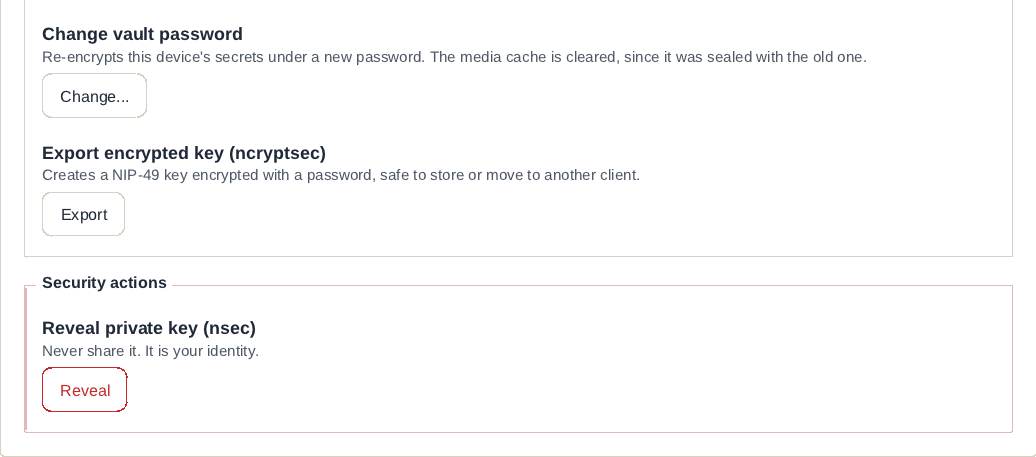
- Under Export encrypted key (ncryptsec), choose Export, then Confirm.
- Enter a unique password for this export. It need not be the device vault password.
- Choose Export key.
- Use Save file or Copy to store the resulting encrypted key, then close the dialog with Done.
Check that your chosen destination saved the complete value. Repeat for every local account; exporting the active account does not back up the others.
Reveal private key (nsec) offers Reveal, then Confirm reveal, followed by Show/Hide and Copy. Use this only when you need the raw private key, and put it directly into a trusted password manager. Avoid screenshots, chat messages and online key converters.
Importing an encrypted identity export
The Linux I have an nsec sign-in form has no password field for decrypting a NIP-49 ncryptsec export. Import backup is for .wnbk settings backups, not encrypted identity keys.
Before deleting the original account or its app data, obtain a trusted local method of decrypting the NIP-49 export and confirm that you can recover the correct nsec. Ask the runtime or app maintainers if you need help choosing that method. Keep the original installation until recovery is confirmed; do not upload the key and password to a website.
To sign in with a recovered nsec, follow Install and set up White Noise. This signs in to the identity, not a restored copy of the old message database.
Remote-signer accounts
Linux cannot reveal or export a remote signer's identity private key. Back it up in the signer itself. Keep its recovery instructions available, then reconnect with Connect with a bunker link or Pair with a remote signer when needed. A settings backup is not a signer backup, and reconnecting a signer is not a message-history restore.
Create a settings backup
- Open Settings > Storage.
- Under Back up everything, choose Create backup....
- Pick a password for the backup, then choose Create backup.
- Finish the save dialog. The default filename is
whitenoise-backup.wnbk.
The app reports Backup created. after the file is written and updates Last backup. A cancelled save is not a saved backup. Keep this password: neither the vault password nor an identity-key password will open the file unless you deliberately used the same value.
Import a settings backup
Before importing: The backup replaces included settings and files, including drafts and local preferences. Save anything you need from the destination installation first. It does not merge accounts or restore keys and conversations.
- Open Settings > Storage.
- Choose Import..., then Confirm import.
- Select the
.wnbkfile. - Enter the password chosen when that file was created and choose Import backup.
- Read Backup imported: … files restored. and check the settings you needed.
The sign-in screen also offers Import backup for the same settings format. If the file cannot be opened, check that you selected the right file and password. A successful import reports a file count, not proof that every desired setting was restored.
Password loss, sign-out and account removal
You can change a known vault password under Keys & identity > Security > Change vault password. Enter the current password, a new password and its confirmation, then choose Change password. This does not change passwords on previously exported keys or .wnbk files.
Sign out on your profile keeps this account's keys in the device vault, so you can sign in again from the accounts screen. For a remote signer, it removes the saved signer session and attempts remote logout; keep the signer available for a later connection.
Before removing an account: The trash action on an account row permanently deletes its keys and local chats from this device. It does not tell groups that the account has left. Back up the identity first; a key backup will not undo the loss of local conversation state.
The account trash action opens Remove this account?; Remove confirms it. Use Sign out instead if you mean to keep the account's local data.
Before deleting a vault: Delete this vault at the password gate is a destructive reset, not password recovery. It removes the vault and its vault-bound queue, media cache, stickers and saved GIF data. A
.wnbkbackup does not replace those secrets. There is no password recovery that preserves them.
Do not use Confirm: delete this vault to troubleshoot an incorrect password. If you have lost the password, preserve the existing app data and check your separate identity or signer backups before resetting anything. See Access problems for help describing the problem.