
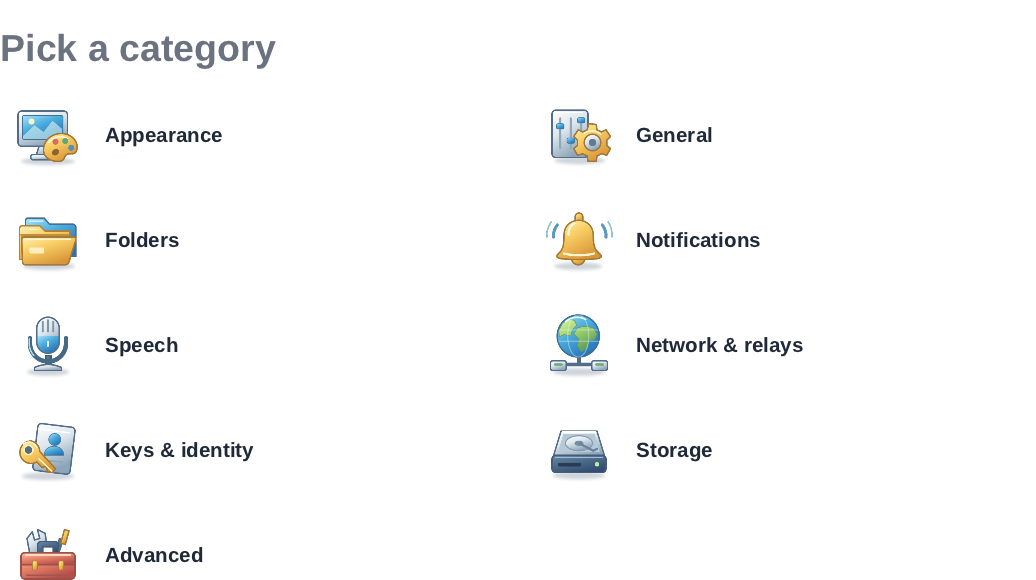
Open Settings from the navigation rail. The home page offers tasks and categories; a category can have several pages. The paths below use the English labels.
Text follows the reviewed Linux source. Screenshots show v2026.10.6-build.1 with synthetic offline data. Controls can differ; cross-client messaging and full recovery have not been verified.
General and appearance
General > Startup
Choose Launch at login, Start minimized to tray, Close to tray, and Restore last selected chat on launch. Starting minimized takes effect on the next launch. Closing to tray hides the window instead of quitting.
General > Language
Set Interface language, Time format, and Date format. English, Italian, German and Japanese are available.
General > Messaging
Configure One-tap reactions and Custom emoji, including importing Nostr emoji sets. Previewing and importing sets contacts their image hosts.
Appearance > Theme
Browse Dark and Light themes. Hover previews a theme; leaving it or pressing Escape restores your saved choice. Click to keep a theme.
Appearance > Interface
Adjust the reading and conversation controls:
- Interface zoom and Message text size.
- Emoji style and Scroll speed.
- Reduce motion and Centred conversation.
- Message line limit. A line limit of 0 keeps messages expanded.
Appearance > Avatars
Change avatar appearance.
Folders organizes chats and their automatic filing rules. See Messages for everyday chat controls. Enter sends messages and Shift+Enter inserts a new line; these guides do not assume the mobile Enter-key preference exists on Linux.
Notifications
Open Settings > Notifications:
- Desktop notifications alerts you to new messages outside the conversation you are actively viewing.
- Play a sound controls notification sound.
- Interface sounds plays short tones when a message leaves, arrives, or fails to send.
- Show message preview controls the notification body. Off replaces it with New message; it does not remove the notification title.
- Send test sends a test using the current sound and preview choices, even if Desktop notifications is off.
The app needs to remain running and unlocked to receive messages. Close to tray keeps it running; locking closes connections until you unlock. Desktop notification display also depends on your Linux notification service. See Notifications.
Speech
Speech > Dictation contains speech-to-text controls, and Speech > Read aloud contains reading controls. Speech-to-text processes audio locally after you enable it; required speech models may need downloading. See Photos, files and voice messages.
Network and identity
Network & relays > Relays shows connectivity and your published outbox and inbox lists. Linked events sets event-fetch relays and the web client used to open Nostr events. These are different lists: event-fetch relays are not your chat relay settings. See Relays.
The SOCKS5 proxy controls require Save and an app restart. Use a numeric IP address and port, not a URL or hostname. Credentials, when enabled, are stored in the vault. Relay names are resolved by the proxy, but media-host checks still use local DNS, and external browsers and other apps do not use this setting.
Keys & identity has three pages:
- Identity: view and copy your Public key (npub).
- Key packages: Publish, Refresh, and Rotate invitation keys. Rotation invalidates the current package; it is not an account backup.
- Security: Change vault password, plus Export encrypted key (ncryptsec) and Reveal private key (nsec) for local-key accounts. Remote-signer private keys cannot be revealed or exported here.
Read Back up and recover your account before changing passwords or removing accounts. Account switching and Sign out are on the account/profile screens, rather than a mobile Profile Keys page.
Storage
Settings > Storage shows Cached attachments and a Clear cache action, plus Location, Create backup..., Import..., and Last backup.
Before clearing or importing: Clearing the cache removes locally cached attachments. A backup import replaces saved settings and other included files. The Storage backup does not contain account keys, group encryption state or message history, despite the row's Back up everything label. Keep a separate identity backup and read the recovery guide first.
Use Location > Copy or Open folder to find the app's data directory. The settings directory is separate, so this location is not a complete inventory of app files.
Advanced, AI agents and About
Advanced > Privacy contains Link previews, Location maps, Open locations in, Share usage and diagnostics, and Trusted link sites. Advanced > Audit logs manages recorded log files. Both diagnostics sharing and audit logging start off. See Privacy controls and Linux diagnostics and local logs.
Advanced > Developer > Developer mode exposes Debug and technical key-package tools. It is not needed for ordinary messaging.
AI agents offers setup prompts for connectors. Review a prompt before copying it into an agent you run and trust. It includes the active account's public npub, not its private key; White Noise does not install the connector for you.
About shows the app version and session information. Do not assume the Windows automatic-update controls are available on Linux; use the Linux release/package instructions for your installation.