
Linux privacy controls cover the device vault, notifications, network requests and local contact blocking. Encrypted chats do not make public profile information, downloaded files or every app setting private.
Text follows the reviewed Linux source. Screenshots show v2026.10.6-build.1 with synthetic offline data. Controls can differ; cross-client messaging and full recovery have not been verified.
Lock the device vault
Choose Lock now in the status bar, or press Ctrl+P and choose it from the command palette. Locking closes the runtime's connections, clears the vault key and session state, and returns to the password gate without closing the window. Enter your vault password and choose Unlock to reconnect.
A remote-signer account disconnects when locked or restarted without signing out. Its private identity key remains in the signer; the device vault holds the saved client-session and local keys.
Close to tray only hides the window. It is not a vault lock. These guides do not establish an automatic idle-lock, biometric-unlock or screenshot-blocking control on Linux. Use your desktop's screen lock as well when leaving the computer.
Keep the vault password safe. There is no password recovery that preserves the encrypted secrets. Read Back up and recover your account before changing devices or using a destructive reset.
Understand what is stored locally
The vault protects account secrets and a key used for encrypted local stores such as the send queue and media cache. It is not full-folder encryption. The reviewed client writes settings, including drafts, private nicknames and blocked state, to a separate settings JSON file; hidden-message IDs are also stored separately. Do not assume those files are protected by the vault password.
Files you deliberately save or export are outside that protection too. Protect your Linux account and storage, and review backups before sharing them. Settings > Storage > Location shows the app's data folder, not every separate configuration file.
Limit automatic link requests
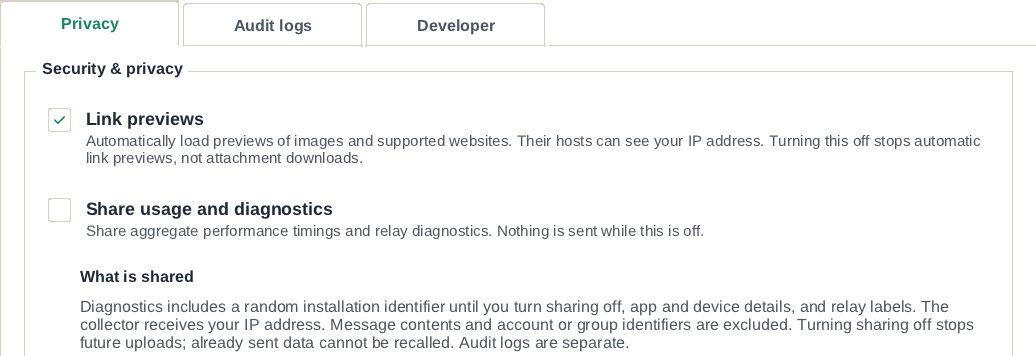
Open Settings > Advanced > Privacy and turn off Link previews if you do not want message links fetched automatically. It is on by default. Preview hosts can see your IP address, and this switch stops new automatic previews rather than recalling earlier requests. It does not stop attachment downloads.
Opening a message link can show Open this link? with its site and full URL before handing it to your browser. Check both before choosing Open. Selecting Always open links to this site skips later confirmation for that exact site. Remove a site under Trusted link sites, or use Forget all, then Confirm forget all, to restore confirmation for the list.
The link-opening confirmation does not prevent automatic preview requests. Turn previews off separately if that is your goal.
Location cards
The first location card asks before loading map data. Advanced > Privacy > Location maps changes that choice later. Map tiles come from OpenStreetMap, and Nominatim receives coordinates rounded to three decimal places for place names. Turning off Link previews also hides these cards.
Open locations in chooses OpenStreetMap, Apple Maps, Kagi Maps or Google Maps for the card's external link. Opening that link sends the location to the chosen site; the card itself still uses OpenStreetMap. The reviewed Linux app displays received locations but does not share your current location.
Notification previews
Open Settings > Notifications and turn off Show message preview to replace the body with New message. The notification title is still passed to the desktop, so this is not an anonymous-notification mode. Turn off Desktop notifications if that exposure is unsuitable, and review your desktop's notification and lock-screen settings too.
Blocked senders and muted conversations do not trigger ordinary new-message notifications. See Notifications for the other conditions.
Block a contact
- Open the person's contact/profile page.
- Choose Block, read Block this contact?, then confirm with Block.
Blocking is local: nothing is published. Their messages collapse behind a Show control, the history remains, and a direct chat with them no longer has a composer. You can choose Unblock on their page or in the direct chat to resume messaging. This does not remove the person from shared groups or erase copies of messages on other devices.
Linux does not expose the mobile Block and Report flow in these controls. See Contacts for finding a person and managing your local labels.
Proxy and diagnostics limits
Network & relays has Use a SOCKS5 proxy. Save changes and restart to apply them. Relay names are resolved through the proxy, but media-host checks still use local DNS. External browsers and other apps do not use this setting. Do not treat the switch as a device-wide anonymity guarantee.
Share usage and diagnostics and Audit logs are separate opt-in controls, both initially off. Metrics can include an installation identifier, app/device details and relay labels, and their collector receives your IP address. Audit logs contain diagnostic activity and hashed identifiers. Linux server retention and the audit tracker's transport behavior are not established by these guides; see Linux diagnostics and local logs before enabling or sharing logs.
Your Nostr profile and profile picture are public. Use a name and photo you are comfortable publishing; encrypted chat attachments follow a different path. See Your profile and the privacy policy.