
Open Contacts to browse the People list, start a conversation, or move a contact list between clients.
Text follows the reviewed Linux source. Screenshots show v2026.10.6-build.1 with synthetic offline data. Controls can differ; cross-client messaging and full recovery have not been verified.
Open a contact and start a chat
- Select a person in the People list.
- Review their name and public key. The page also shows key-package status, relays in common, and groups in common when available.
- Click Start chat.
You can also use New chat in Chats and search the contact picker. See Send a message.
A display name is not a unique identifier. Compare the person's public key through a channel you already trust before relying on a familiar name or picture.
Give someone a private nickname
- Open the contact.
- Enter a label in Nickname.
- Press Enter to save it.
The nickname changes your local labels, not the person's published Nostr profile. Clear the field and press Enter to remove it. Nicknames are local-only, but contact exports include them, so do not share an export as though it contained public information only.
Copy or show a contact's public key
Click Copy beside npub, or click Show as QR to display the person's code. To share your own account instead, open Your profile.
Export contacts
An exported contact file is readable outside White Noise. It includes names, public keys, your private nicknames, and blocked state. Save it somewhere appropriate and check it before sharing it.
- Open Contacts.
- At the bottom of the contact rail, click Export CSV or Export JSON.
- Choose a file destination in the save dialog.
These buttons appear when you have contacts. This is a contact-list export, not a backup of your account, messages, or group encryption state.
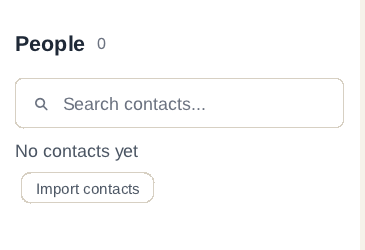
Import contacts
Importing adds people to your Nostr contact list through follow operations. Your published contact list is not a private address book. Nicknames and blocked state are restored locally for newly added records.
- Open Contacts and click Import contacts at the bottom of the rail.
- Choose a contacts
.csvor.jsonexport. - Wait for the result reporting how many contacts were added, skipped, or failed.
Existing contacts and duplicate public keys are skipped rather than overwritten. Imported names do not replace the person's published profile name, which is fetched from Nostr.
Use a White Noise Linux export as the format to follow. CSV files need the exact header name,npub,nickname,blocked, with true or false in the blocked column. JSON files need an array of records containing exactly name, npub, nickname (strings), and blocked (a boolean). Each public key must be a valid npub.
If an import fails, correct the named record and import again. For a relay error, check Linux settings before retrying; already added contacts will be skipped.
Remove or block someone
Removing a contact changes your published contact list. It does not remove either of you from groups you already share.
On the contact page, choose Remove contact and confirm Remove.
Blocking is a separate local action. Choose Block and confirm to hide their messages and prevent direct messaging with them. Nothing is published by that block. Unblock reverses it. Blocking does not remove the person from a shared group or erase messages they already received; see Privacy controls.