
Edit your public Nostr profile and choose which account you use in White Noise for Linux.
Text follows the reviewed Linux source. Screenshots show v2026.10.6-build.1 with synthetic offline data. Controls can differ; cross-client messaging and full recovery have not been verified.
Your profile details and picture are public. A profile picture is uploaded publicly to Blossom, not sent as an encrypted chat attachment. Publish only information you want others to see.
Edit your details
- Open Your profile from the navigation bar.
- Check the account marked ACTIVE in the accounts list.
- Click Edit profile.
- Fill in DISPLAY NAME and, optionally, ABOUT, NIP-05 (
name@example.com), and LIGHTNING (you@wallet.com). A display name is required to publish. - Click Publish changes or press Enter.
Use Tab to move between fields. Cancel or Escape leaves text editing without publishing the draft.
Change your picture
While editing your profile, click Change picture or the profile avatar, then choose an image from your computer. The app uploads and publishes the picture separately from the text form; cancelling text edits does not undo that upload. Wait for Uploading picture to finish.
If the file cannot be read or decoded, choose another image. Copies of an already published picture can remain on other servers even after you change it.
Share your public key
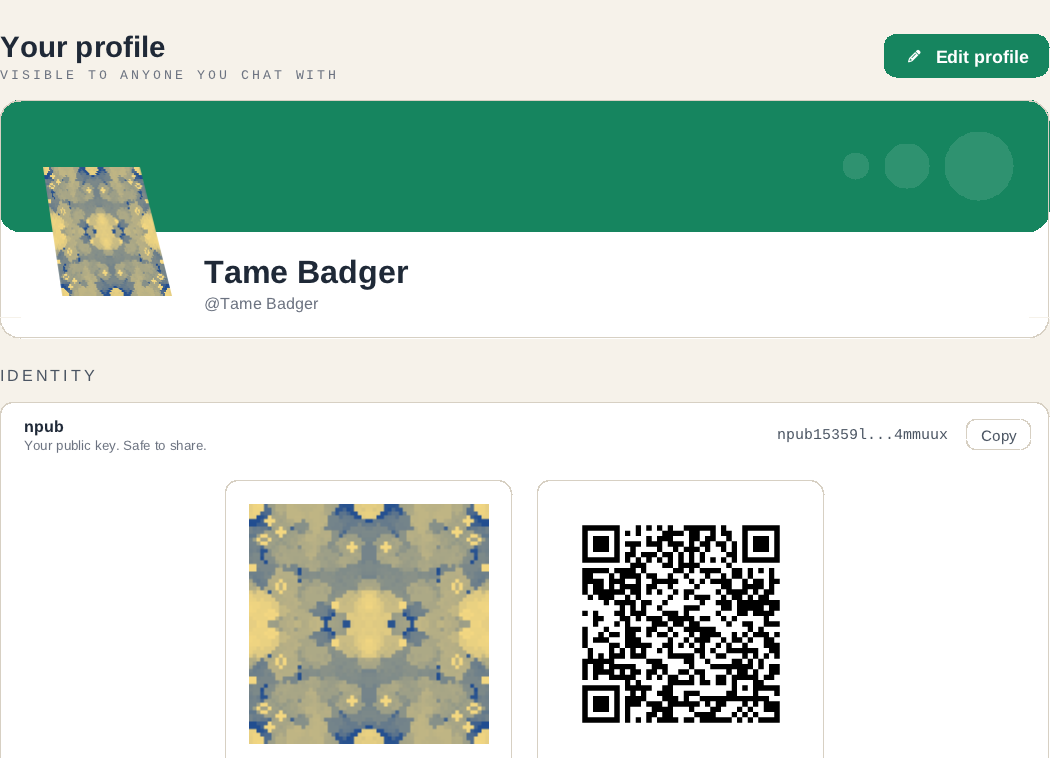
In the profile's IDENTITY card, click Copy beside npub, or let someone scan the displayed QR code. The public key identifies this account even if you change its name or picture.
Share the public npub, not a private nsec. For private-key controls, see Linux settings.
Switch accounts
Click another account in the profile's accounts list. You can also click the avatar in the left rail to open the Accounts switcher and select an account there.
Local-key and remote-signer accounts can be used side by side. Connected accounts continue receiving messages in the background. The app normally opens the account you used last; if that account uses a remote signer, it starts on a local account while the signer reconnects.
Check the active account before editing a profile or sending a message. Switching accounts clears the all-chats search query and results.
Add another account
- Click Add account in the profile's accounts list or the Accounts switcher.
- Choose I have an nsec, Generate a new key, Connect with a bunker link, or Pair with a remote signer.
- Complete the sign-in flow. For a remote signer, keep it open and approve the connection and requested signatures there.
The Linux setup guide covers account creation and sign-in. A remote signer's private key stays in that signer and cannot be revealed or exported from White Noise.
Sign out or remove an account
Sign out on the profile page keeps a local account's keys in this device's vault. For a remote signer, it removes the saved signer session and attempts remote logout; keep the signer available to connect again. Read the confirmation before proceeding.
Remove account is different: the trash button deletes that account's keys and chats from this device. It cannot be undone. Other group members still see the account as a member; removal does not leave its groups. Read Back up and recover your account before removing anything you need to keep.
To remove an account, click its trash button in the accounts list or Accounts switcher, then confirm Remove.