
Control desktop alerts, sounds, and message previews in White Noise for Linux.
Text follows the reviewed Linux source. Screenshots show v2026.10.6-build.1 with synthetic offline data. Controls can differ; cross-client messaging and full recovery have not been verified.
Choose what appears on your desktop
Desktop notifications are shown outside the encrypted conversation. Your desktop's notification center or lock screen may expose them. Turning off message previews hides the body text, not the notification title.
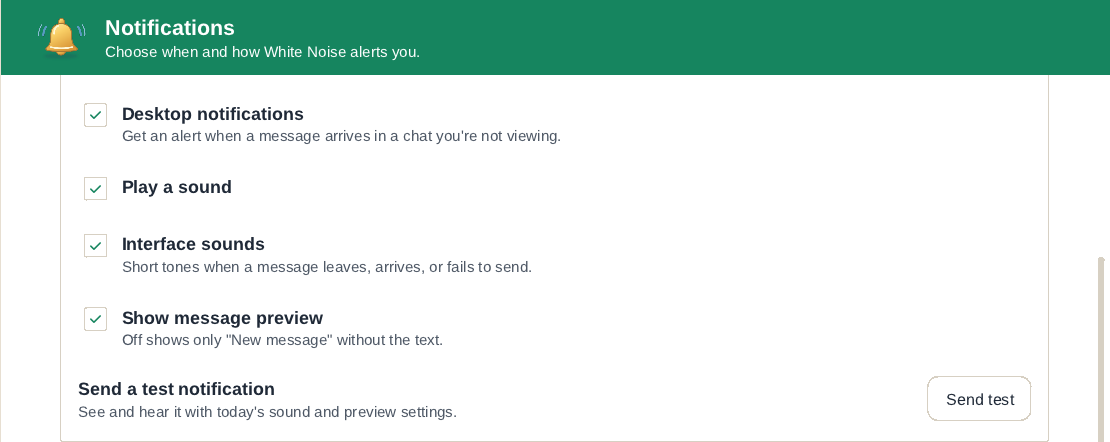
- Open Settings > Notifications.
- Under Incoming messages, set Desktop notifications to turn message alerts on or off.
- Set Play a sound for notification audio.
- Turn off Show message preview if you want the body to say New message instead of displaying the message text.
- Use Send test under Send a test notification to check the current sound and preview choices.
The test button sends an alert even when Desktop notifications is off, so you can inspect the alert before enabling it. Message previews and notification sounds start enabled in a new configuration; review them before using White Noise on a shared screen.
Interface sounds is a separate switch for short tones when a message leaves, arrives, or fails to send. Turn it off too if you want those app sounds silenced.
Mute one conversation
- Right-click the conversation's row in the chat list.
- Choose Mute.
- To restore alerts later, right-click the row and choose Unmute.
Muting changes your local preference, not the group's membership or other people's settings. It is separate from turning off desktop notifications for the whole app.
The bell in a conversation's header opens its mentions inbox; it is not the mute switch. Use the chat-list menu for Mute and Unmute.
Understand when an alert is sent
An incoming message can notify when you are viewing another chat or the app is in the background. White Noise suppresses the alert when its window has focus and you are already viewing that conversation.
Muted chats, your own messages, and messages from people you blocked do not produce incoming desktop alerts. Edits, reactions, deletions, and system rows are not new-message alerts. Connected accounts can receive messages in the background without being the account you are currently viewing.
Desktop alerts require the app and its account connection to be running. Locking White Noise closes its messaging runtime until you unlock it; this is not a mobile push-notification service that works independently of the app.
If alerts or sounds are missing
- Click Send test. It checks desktop display and the current preview/sound choices without requiring a new message.
- Check your desktop's notification settings, Do Not Disturb mode, and audio output. Desktop policy can hide or silence an alert even when White Noise requests one.
- Check that the conversation is not muted and Desktop notifications is enabled.
- For a live-message check, leave the conversation or move focus to another window. A message arriving in the focused, open conversation is deliberately quiet.
- If the message itself has not arrived, check the connection and signer status rather than only the notification switches.
If the problem continues, use Linux diagnostics and local logs. Remove message content and account details you do not want to disclose before sharing logs.